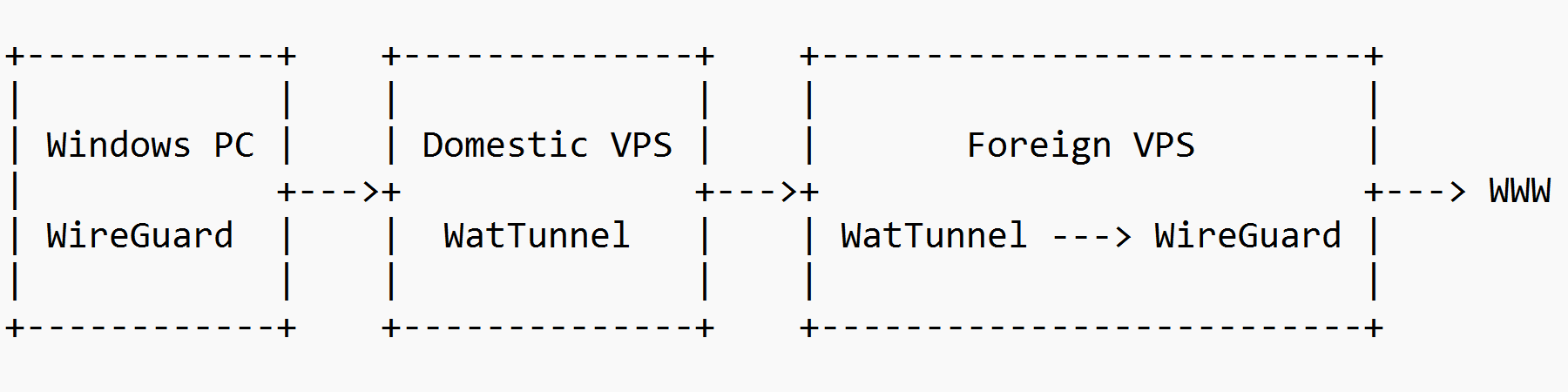
This tutorial shows you how to pass a WireGuard connection through the double-hop tunnel.
Set up foreign server
Install WireGuard on foreign server
Set the foreign server up first, and work your way back through the domestic server to the client.
SSH into the foreign server as root.
Install WireGuard:
wget https://git.io/wireguard -O wireguard-install.sh && bash wireguard-install.sh- It doesn't matter which input IP address you choose, as you will change it on the client side later.
- Leave the port at
51820. - Enter a name of your choice for the first client, e.g.
windows11. - For the DNS server, choose an international option, e.g.
1.1.1.1. - When you are ready to proceed with the installation, press Enter.
You will eventually need to copy the client configuration file /root/windows11.conf down to your PC. You will need to think about how to do this, given whatever censorship you are experiencing at the time you set up this server.
You should now your make WireGuard server inaccessible to the public. It will be reached only through WatTunnel. Edit the WireGuard systemd service file:
vi /etc/systemd/system/wg-iptables.serviceDelete the line:
ExecStart=/usr/sbin/iptables -w 5 -I INPUT -p udp --dport 51820 -j ACCEPTAlso delete the line:
ExecStop=/usr/sbin/iptables -w 5 -D INPUT -p udp --dport 51820 -j ACCEPTSave the systemd service file with these changes in it.
Reboot the server:
rebootSSH back into the server.
Make sure port udp/51820 is no longer open for input from the public:
iptables -vnLMake sure WireGuard is still up and running:
wg show wg0systemctl status wg-quick@wg0ss -tulpn | grep 51820Install WatTunnel on foreign server
Download and run the installer:
bash <(curl -fsSL https://raw.githubusercontent.com/JohnWatsoon/WatTunnel/main/install.sh)When asked which side this server is on, press 1 on your computer keyboard to indicate that this is the foreign server.
When asked which connection type you want, the recommendation is to press 1 on your computer keyboard to specify automatic selection of connection type.
Assuming you don't have a CDN domain, just press Enter.
At the prompt asking if you now want to create this tunnel, press y on your computer keyboard.
The script displays a list of ports:
icmp · udp 4443 · tcp 4443 · tls 8443 · ws 2052 · wss 2053 · h2 2087 · h2c 2082 · grpc 2083Open these ports in your server firewall.
A connection token is displayed. For example:
wat1:YXV0b3wyMDkuMzgu...Copy this and save it in a safe place. You will need to paste it into your domestic server in a moment.
Remember to open for input the required ports in your foreign server's firewall.
If a cloud firewall is in front, open: 4443/udp 4443/tcp 8443/tcp 2052/tcp 2053/tcp 2087/tcp 2082/tcp 2083/tcp

ICMP: this server must answer ping. Do not block ICMP in the cloud firewall.
The systemd service file is in /etc/systemd/system/wattun@.service. Make sure the service is active and running:
systemctl status wattun@kharejThe work on the foreign server is done for now:
exitSet up domestic server
The domestic server will receive WireGuard packets and tunnel them to the foreign server.
SSH into the domestic server as root.
Open for input port udp/51820 in the domestic server.
Install WatTun. If GitHub is available on the domestic server:
bash <(curl -fsSL https://raw.githubusercontent.com/JohnWatsoon/WatTunnel/main/install.sh)If GitHub is blocked on the domestic server:
WAT_PROXY=https://ghproxy.net/ bash <(curl -fsSL https://ghproxy.net/https://raw.githubusercontent.com/JohnWatsoon/WatTunnel/main/install.sh)When asked which side this server is on, press 2 on your computer keyboard to indicate that this is the domestic server.
When asked if you have the token, press y on your computer keyboard.
Paste the connection token that was generated on the foreign server and press Enter.
WatTun tests every connection type (about 2-3 minutes) and identifies the fastest working possibility. Press Enter to accept its default choice of method.
Now you are prompted for which port on the domestic server to map to which port on the foreign server. In our example the only input required would be:
51820/udpWhen this appears on the confirmation list, press Enter again to mean that you are now done adding ports.
When asked if you want to change the advanced settings, press Enter to mean no.
The tunnel details are displayed. When asked if you want to create the tunnel, press y to mean yes.
The work on the domestic server is done for now:
exitSet up Windows client
You will need to copy the client configuration file /root/windows11.conf from the foreign server down to your PC. You will need to think about how to do this, given whatever censorship you are experiencing at the time you set up the servers and client.
- Edit
Downloads\windows11.confin Windows Notepad. - Change the Endpoint IP address from the foreign server IP address to your domestic server IP address.
- Save the file with the name
Downloads\wg0.conf(make sure Windows doesn't add an extra.txton the end of the filename).
You will need to install WireGuard for Windows from https://www.wireguard.com/install. You will need to think about how to do this, given whatever censorship you are experiencing at the time you need the Windows WireGuard client.
Click Import tunnel(s) from file.
Select the file Downloads\wg0.conf, which now points to the domestic server.
On the tunnel editing page, check the box Block untunneled traffic (kill-switch) and click Save.
Click Activate.
Open a browser and see if you can browse the web.